Google Sheets QUERY Function: A Plain-English Guide (with Examples)
QUERY is the most powerful function in Google Sheets — and the one people get stuck on most. It lets you filter, sort, group, and summarize a whole table with a single formula, using a language a lot like SQL. Here's how it works, in plain English, with examples you can copy.
The QUERY function runs a database-style query over a range: =QUERY(data, query, [headers]). For example, =QUERY(A1:D100, "SELECT A, SUM(D) GROUP BY A") returns each value in column A with its total from column D. Reference columns by their letters, and wrap text values in single quotes.
What the QUERY function does
Most spreadsheet functions do one thing — SUM adds, VLOOKUP looks up a value. QUERY does many at once: it can pick specific columns, filter rows by a condition, group and total them, sort the result, and limit how many rows come back — all in one formula. If you've ever built a pivot table and wished you could just write what you wanted, that's QUERY.
The basic syntax
=QUERY(data, query, [headers])- data — the range to run the query on, e.g.
A1:D100. - query — a SQL-like string, in double quotes, e.g.
"SELECT A, B WHERE C = 'West'". - headers — optional; how many header rows your data has (usually
1).
The single most important rule: inside the query string, you refer to columns by their letters (A, B, C) — not their header names. Text values you compare against go in single quotes.
The clauses you'll actually use
They must appear in this order: SELECT → WHERE → GROUP BY → ORDER BY → LIMIT.
SELECT — choose columns
=QUERY(A1:D, "SELECT A, D")Returns just columns A and D. Use SELECT * for every column.
WHERE — filter rows
=QUERY(A1:D, "SELECT * WHERE C = 'West'")
=QUERY(A1:D, "SELECT A, D WHERE D > 500")
Combine conditions with AND / OR: WHERE C = 'West' AND D > 500.
GROUP BY — summarize
=QUERY(A1:D, "SELECT C, SUM(D) GROUP BY C")Returns each category in column C with its total from column D. Other aggregates: COUNT(), AVG(), MAX(), MIN().
ORDER BY and LIMIT — sort and cap
=QUERY(A1:D, "SELECT A, D ORDER BY D DESC LIMIT 5")This returns the top 5 rows by column D, highest first. Use ASC for lowest first.
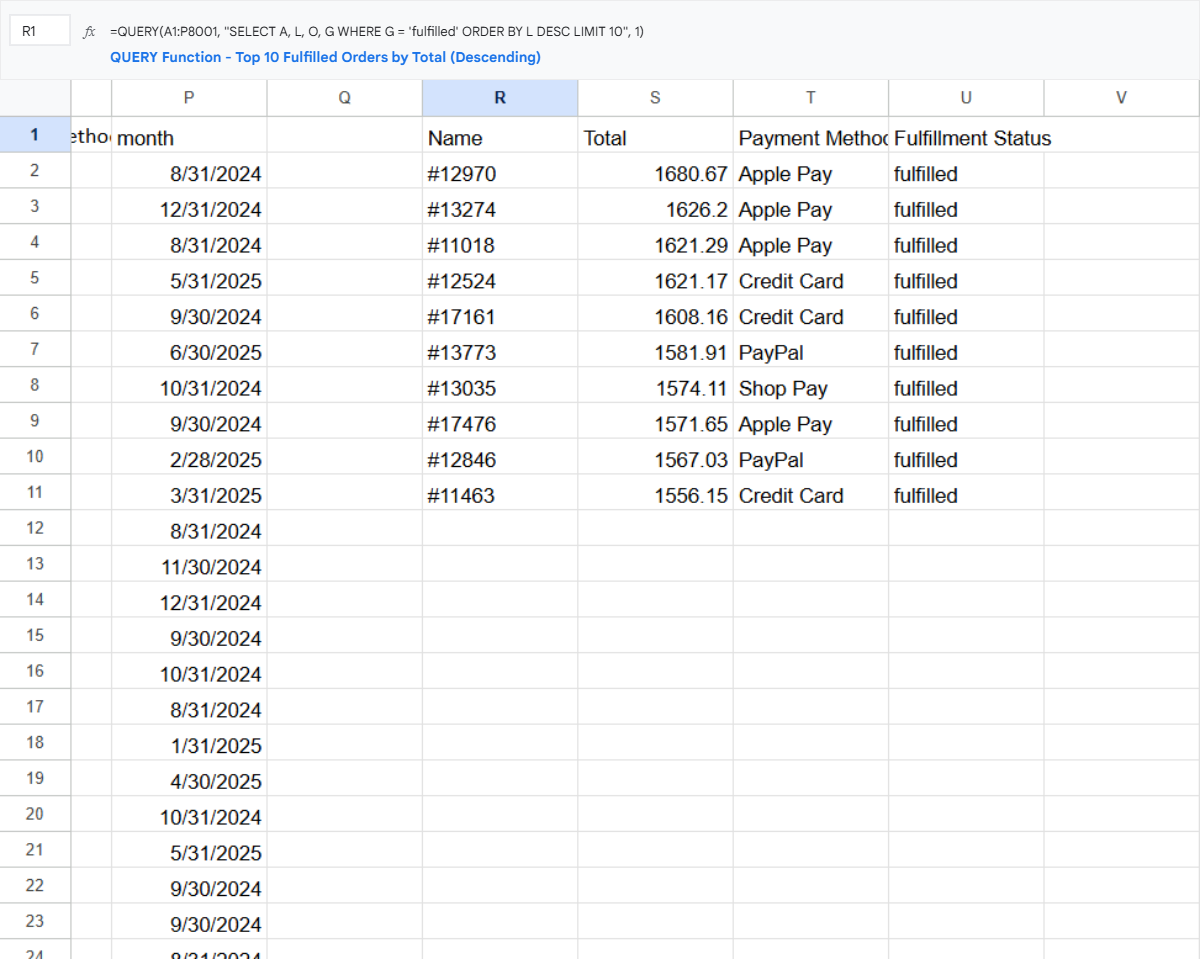
WHERE, ORDER BY, and LIMIT — here, the top 10 fulfilled orders by total value.Rename a column: add a LABEL clause — ... GROUP BY C LABEL SUM(D) 'Total Sales' — to give an aggregated column a readable header.
Real-world examples
| Goal | Formula |
|---|---|
| Total sales per region | =QUERY(A1:D, "SELECT C, SUM(D) GROUP BY C") |
| Orders over $500 in the West | =QUERY(A1:D, "SELECT * WHERE C='West' AND D>500") |
| Top 10 customers by spend | =QUERY(A1:D, "SELECT A, D ORDER BY D DESC LIMIT 10") |
| Everything since Jan 1, 2025 | =QUERY(A1:D, "SELECT * WHERE B >= date '2025-01-01'") |
| Count of orders per status | =QUERY(A1:D, "SELECT C, COUNT(A) GROUP BY C") |
Common QUERY errors (and fixes)
"Unable to parse query string for Function QUERY parameter 2" — the query syntax is off. The usual suspects:
- Using a header name instead of a column letter (
SELECT Region→ useSELECT C). - Missing single quotes around text (
WHERE C = West→WHERE C = 'West'). - Clauses in the wrong order (WHERE must come before GROUP BY).
Empty or partial results usually mean a column mixes text and numbers — QUERY picks the majority type and ignores the rest. Clean the column so it's all one type.
Querying another sheet
Point the data argument at a range on another tab:
=QUERY('Sheet2'!A1:D100, "SELECT A, B")To query a different file, wrap IMPORTRANGE. Note that IMPORTRANGE results are referenced as Col1, Col2 instead of letters:
=QUERY(IMPORTRANGE("spreadsheet_url","Sheet1!A1:D"), "SELECT Col1, Col2")Or just ask the question
QUERY is powerful, but you shouldn't need SQL to understand your own data. With Octo, connect your sheet and ask "total sales per region, top to bottom" in plain English — no formula required.
Add Octo to Chrome — freeFrequently asked questions
How do I use the QUERY function in Google Sheets?
Use =QUERY(data, query, [headers]) — the data is your range and the query is a SQL-like string in quotes, e.g. =QUERY(A1:D100, "SELECT A, SUM(D) GROUP BY A"). Reference columns by letter and put text in single quotes.
Why does my QUERY return "Unable to parse query string"?
The syntax is off — usually a header name used instead of a column letter, missing single quotes around text, or clauses in the wrong order (SELECT, WHERE, GROUP BY, ORDER BY, LIMIT).
Can I use column names instead of letters?
No — for a range, QUERY uses column letters (A, B, C). The headers still show in the result, and you can rename them with LABEL.
How do I filter by date?
Use a date literal: WHERE B >= date '2025-01-01' (lowercase date, value in single quotes, yyyy-mm-dd).
Can QUERY pull from another sheet?
Yes — reference another tab's range, or wrap IMPORTRANGE for another file (using Col1, Col2 references).
How we made this: We tested every formula in Google Sheets in 2026 to confirm the syntax and results.